VELUX Support - VELUX Touch
How to use and navigate your VELUX Touch
How to operate a product or group of products to a preferred position
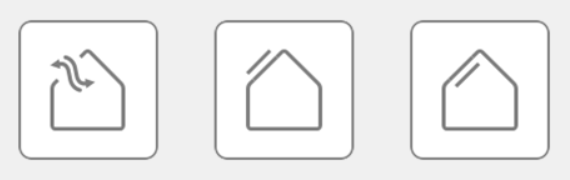
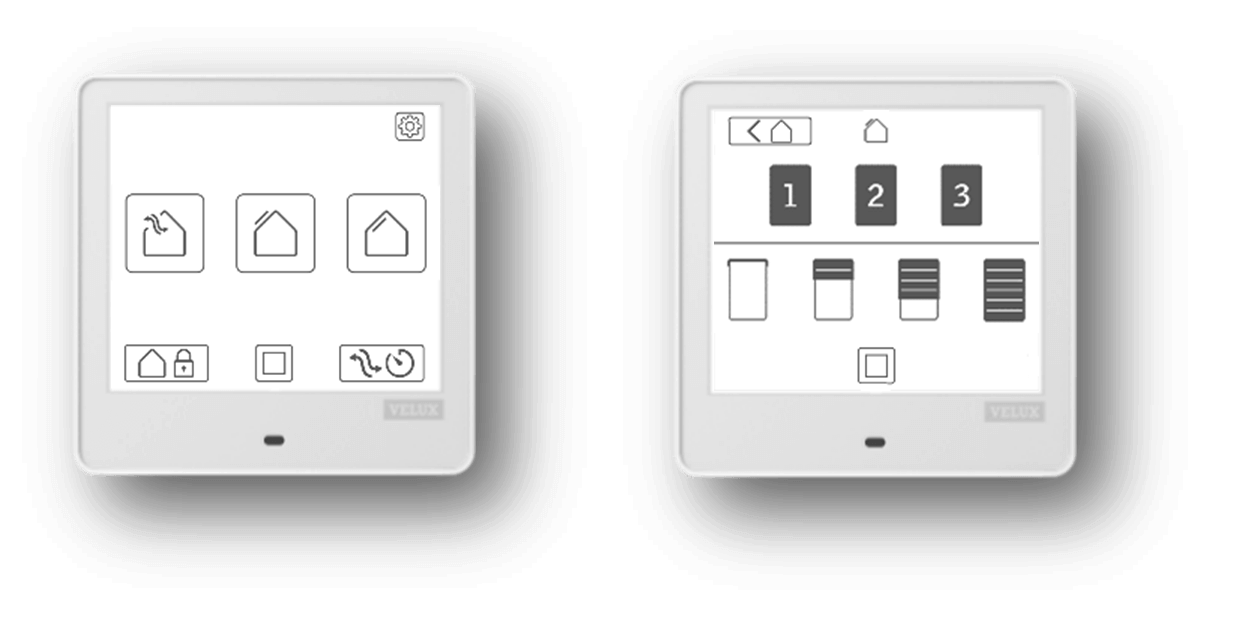
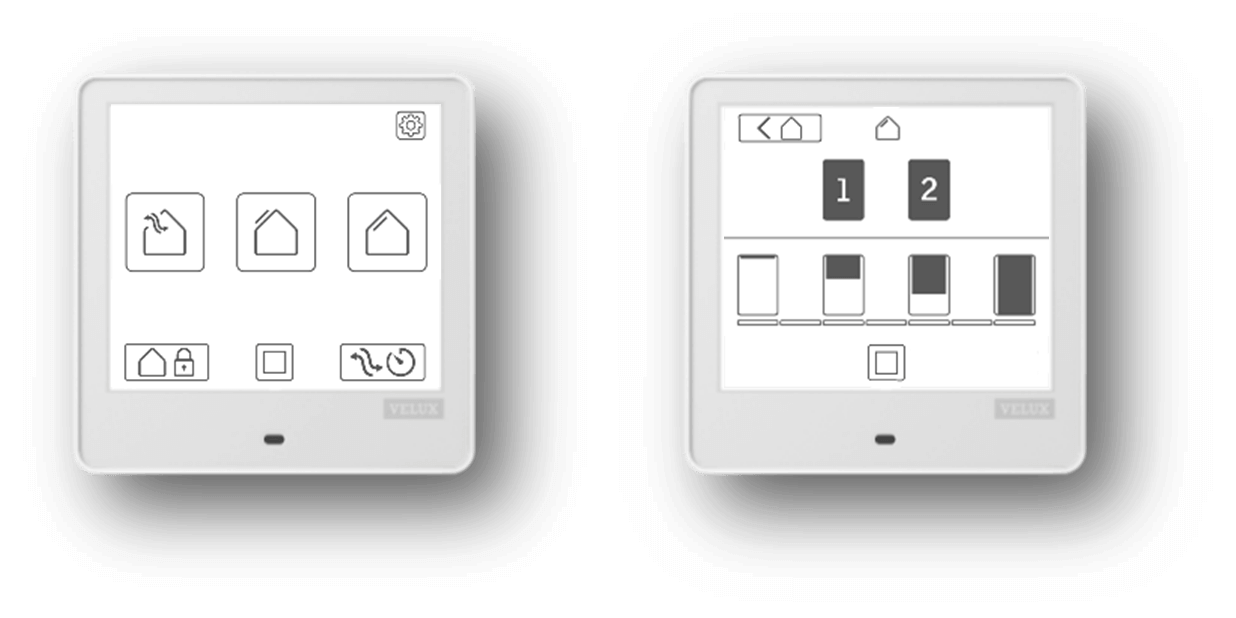
To operate a product or a group of products to a specific position, you need to select the product category, the product(s) to be controlled and, finally, the preferred position. Please follow the steps described below:
On your VELUX Touch:
- Select the product category (Window, Exterior sunscreening or Interior sunscreening)
Note: Depending on the products copied to VELUX Touch, all categories might not be displayed. - Select the product/group to be operated by tapping the icon above the horizontal line. To control several products simultaneously, tap a combination of products and/or groups.
Hint: Pressing the group icon for more than 5 seconds shows the individual products in the group, which can then be operated individually. - Select the preferred position of the product by tapping the icon below the horizontal line.
- Tap the stop button to stop the product operation at any position other than the predefined.
Window control during rain: If a window is opened during rain, the opening is automatically restricted to the ventilation position to protect the interior. At your own risk, additional opening is possible to a maximum of 50% and for a period of 15 minutes.
Note: Some window types do not support the ventilation position, which is why the window remains closed when selecting this position. In case it starts to rain while the window is open, the window always closes automatically.
Product operation - Window
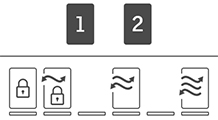
This article shows the predefined window opening positions for normal operation and in case of rain.
Window (closed/secured ventilation/25%/50%/75%/100%).
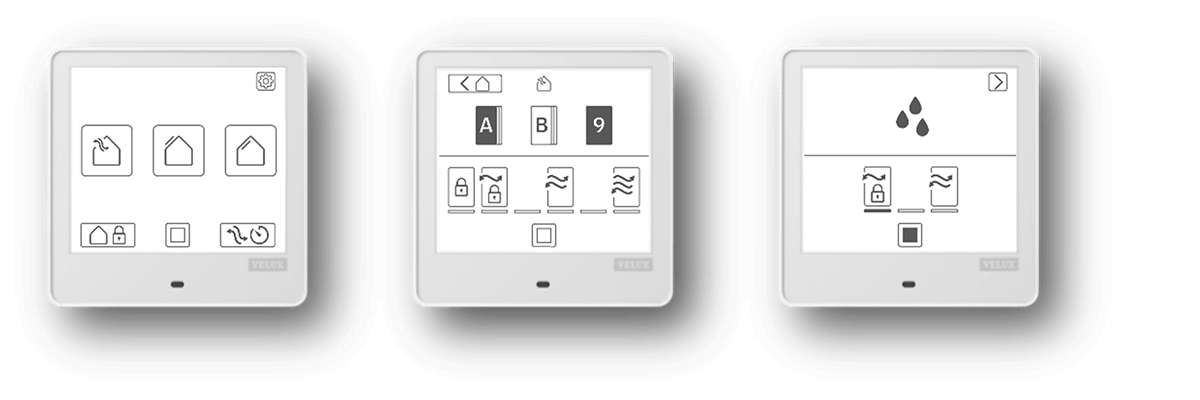
Rain protection (ventilation-25%-50%)
Error feedback
In case the window cannot reach the requested position, a pop-up will inform you about the reason:
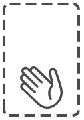
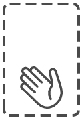
- The window has been manually operated.
Please close to operate electrically.
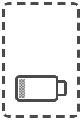
Please ensure recharging is obtained.
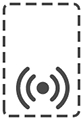
Please move the control closer to the window.
Please reset the window and add it again.
Please try to operate the window later.

Product operation - Exterior sunscreening
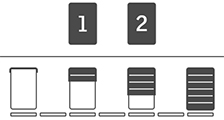
This article shows the predefined sunscreening positions for normal operation.
Exterior sunscreening (up/10%/25%/37%/50%/75%/100%)
Error feedback
In case the exterior sunscreening cannot reach the requested position, a pop-up will inform you about the reason:
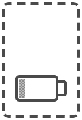
- The window is running low on battery.
Please ensure recharging is obtained.
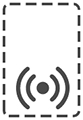
Please move the control closer to the window.
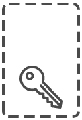
Please reset the window and add it again.
Please try to operate the window later.

Product operation - Interior sunscreening
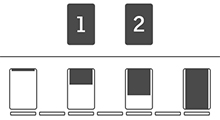
This article shows the predefined sunscreening positions for normal operation.
Interior sunscreening (up/10%/25%/37%/50%/75%/100%)
Error feedback
In case the interior sunscreening cannot reach the requested position, a pop-up will inform you about the reason:
- The window is running low on battery.
Please ensure recharging is obtained.
Please move the control closer to the window.
Please reset the window and add it again.
Please try to operate the window later.

Stop ongoing operation
This article shows you to conveniently position your VELUX electrical product in any position between the minimum and maximum opening level (0%-100%).
To conveniently position your VELUX electrical product in any position between the minimum and maximum opening level (0%-100%), you can always stop an ongoing operation by tapping the stop button.
On your VELUX Touch
Tap the stop button to stop an ongoing operation.
On your VELUX Touch
Tap the stop button to stop an ongoing operation.
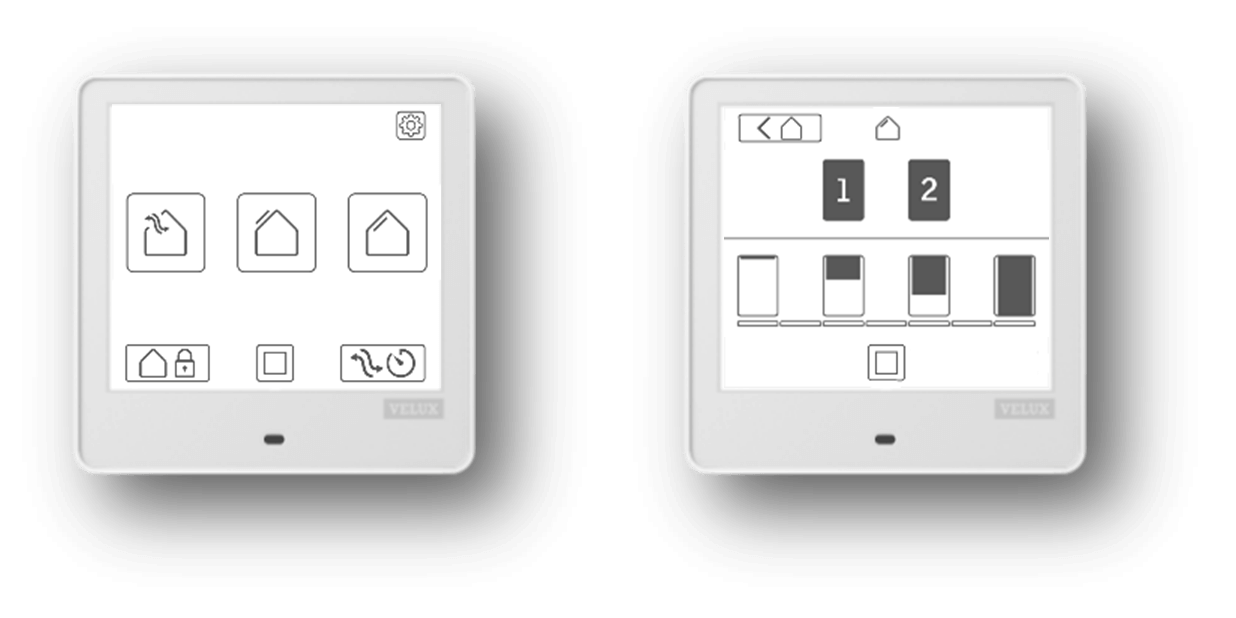
- Main screen: Tapping the stop button stops all groups/products that move in all categories.
- Product operation screen: Tapping the stop button stops all groups/products that are selected in this category.
Note: You also stop an ongoing product operation requested from another control. Tapping any stop button for more than 5 seconds sends a stop command to all products controlled by your VELUX Touch.
Stop an ongoing operation requested from VELUX Touch
VELUX Touch Settings

This article shows how to access and edit the controls default settings to meet your personal preferences.
You can at any time edit the default settings of your VELUX Touch, edit groups or add new products to the device.
On your VELUX Touch
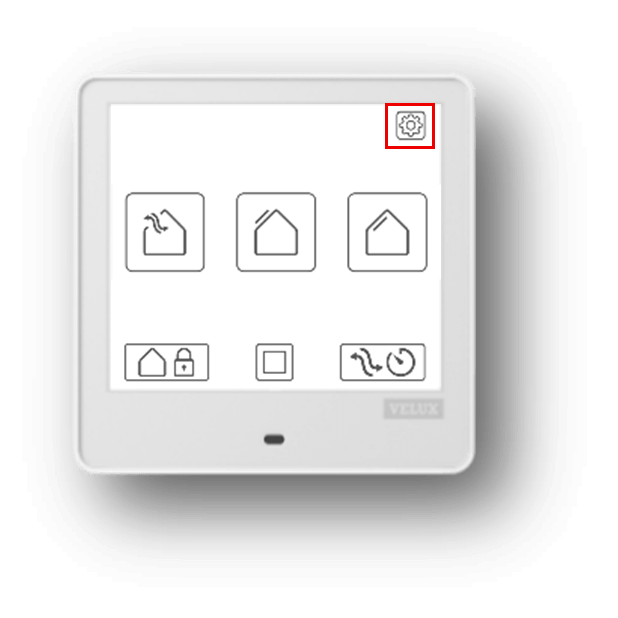
- Tap the settings button (gear icon) on the main screen. Now tap an icon to perform the specific action.
- Hint: Please refer to the section ‘Personalise’ for a detailed description of each option.
Close all products
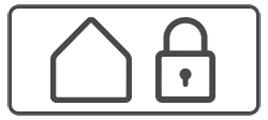
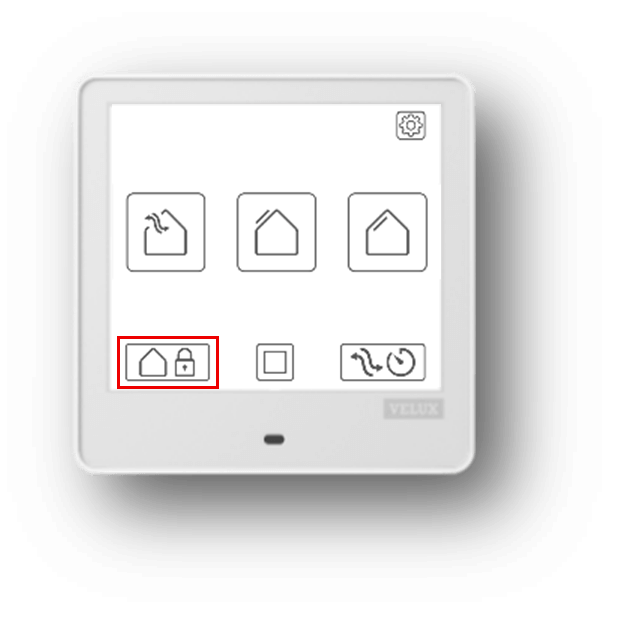
To easily close all products when leaving your home, you only need to tap the Close all products button on the start-up screen. Automatically, your windows will close, and the sunscreening will be lowered. Please follow the steps described below:
On your VELUX Touch
Tap the Close all products button on the main screen to close all windows and lower all sunscreening – all in one operation.
Note: If your VELUX Touch is not controlling windows, the Close all products button is hidden by default. You can at any time add or edit the functionality to meet your personal preferences (Settings > Edit Close all products).
Ventilation timer
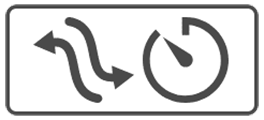
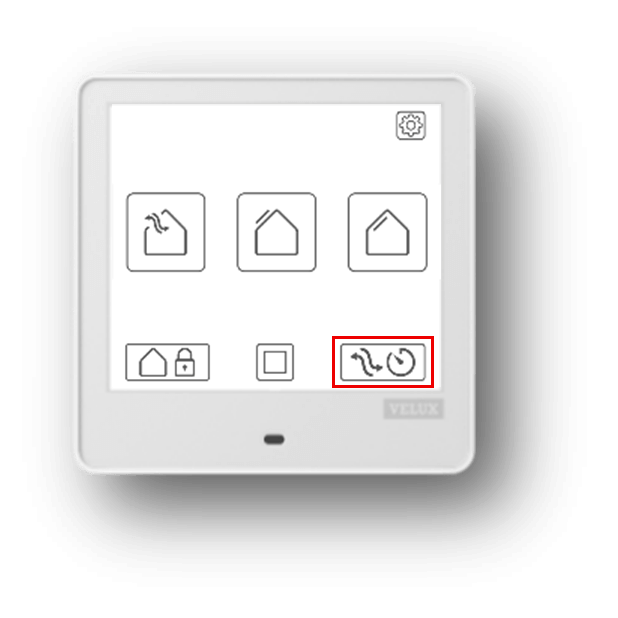
To easily obtain short and effective ventilation of your room, you only need to tap the ventilation timer button on the start-up screen. Your windows will open, and after 15 minutes they will close again automatically.
Please follow the steps described below:
On your VELUX Touch
Tap the ventilation timer button on the main screen to open all windows and have them close again automatically after 15 minutes – all in one operation.
Note: You can at any time edit the ventilation timer to meet your personal preferences regarding which windows to open, the opening percentage and the ventilation duration (Settings > Edit Ventilation timer).
How can we help you?
Need further assistance?
If you are not sure how to proceed or you can’t find what you are looking for, get the help you need.