VELUX Support - VELUX Touch
Installation and setup of your VELUX Touch
To set up your new VELUX Touch to control your existing VELUX products, you have to follow a simple process.
1. Turn on your VELUX Touch (remove the red battery pull tab)
Connect the batteries in your VELUX Touch by removing (pulling) the red battery pull tab on the rear side.
- Turn the control pad around to access the back.
- Pull the red battery pull tab to connect the batteries.
- Place the control pad on a flat surface with the display side facing up.
Your VELUX Touch is now turned on and displaying a world map.
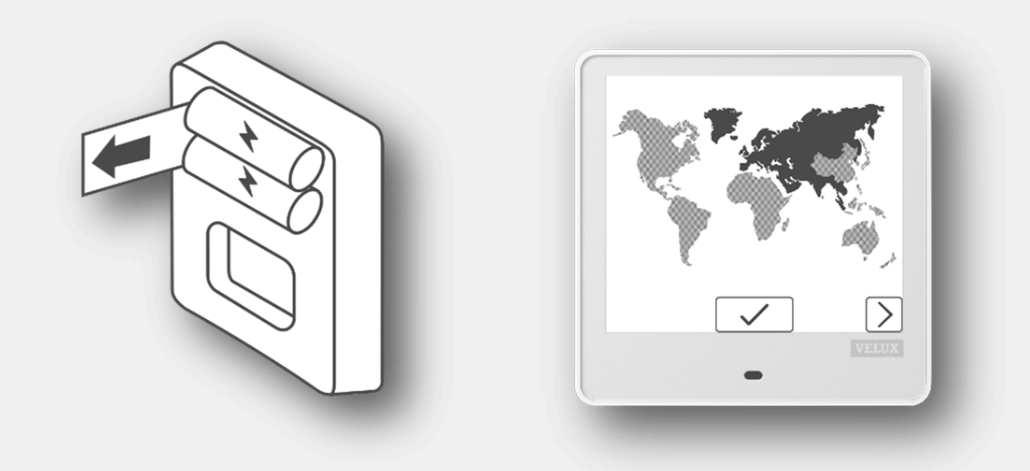
2. Select your region to set the operating frequency (Europe or North America)
Select the geographical region where you intend to operate your VELUX Touch.
- Select the geographical region (Europe or North America). To swap between regions, press one of the arrows at the bottom.
- Confirm your selection by tapping the check mark button.
Your geographical region and operating frequency settings are now saved, and your VELUX Touch is ready to receive products from another control.
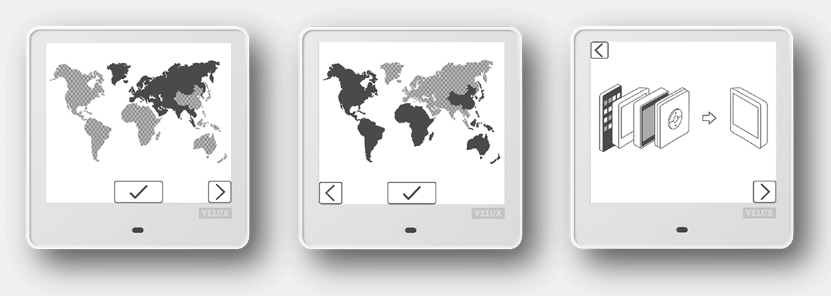
3. Select your existing control type to copy products from (a QR code will link to detailed instructions depending on your selected control type)
To copy products from an existing control to your new VELUX Touch, you must first select the specific control type already in use.
Important: There are two types of VELUX controls: with feedback and without feedback. In case you use both types, you must always begin by copying from the control with feedback!
- Select the control type already in use. To swap between types, press the one of the arrows at the bottom.
- Confirm your selection by tapping the check mark button.
- Follow the instructions on your VELUX Touch showing how to prepare before starting the copy.
Note: On-screen guidance for all steps required for copying products is only shown for a wall switch without feedback.
For all other control types, you will be asked to scan the QR code for detailed information.
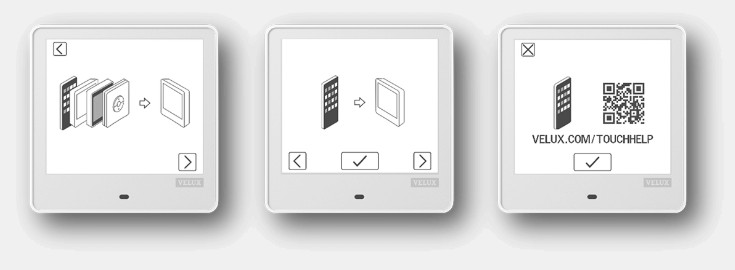
Please find below the guidelines to copy products from:
- an existing control pad (KLR 200) to VELUX Touch
- the VELUX ACTIVE with NETATMON app
- an existing VELUX Touch (KLR 300)
- an interface (KLF 200)
- an existing wall switch (KLI 31x)
- a control unit (KLC 410)
- not having any functional remote control
4. Copy/add products to your VELUX Touch, and verify that all products have been copied
Copy products from your existing control to your new VELUX Touch.
Important: Make sure that all the steps required on your existing control are completed before starting the copy!
- Start the product copy by tapping the check mark button on the selected control type.
- Wait for the copy to complete (this may take up to 1 minute).
- Confirm that all products are copied to your VELUX Touch by tapping the check mark button.
The copy of products has now been successfully completed, and you only need to make one final decision.
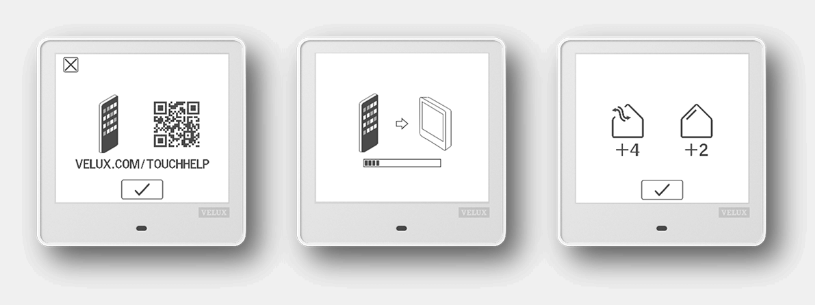
5. Start using your VELUX Touch (or add more products from other controls)
You have now reached the final step before you can start using your new VELUX Touch. You can either decide to start using your new control pad right away or you can add more products from other controls.
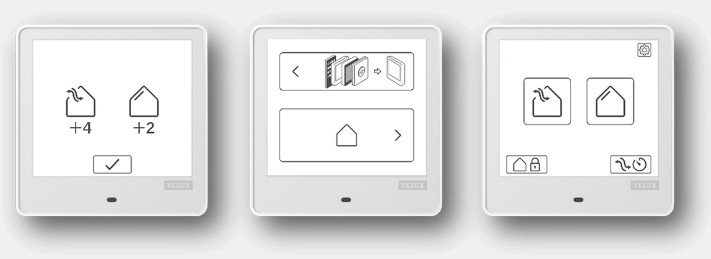
- Tap the Home button to proceed directly to the VELUX Touch main screen, showing the products to be controlled.
- Tap the copy control button if you want to add more products from other controls.
Hint: You can always add more products to your VELUX Touch later on.
Please refer to ‘Personalising VELUX Touch’ > ‘Add products’.
You have now completed the setup, and you can start using your control pad.
How can we help you?
Need further assistance?
If you are not sure how to proceed or you can’t find what you are looking for, get the help you need.