VELUX Support - VELUX App Control and VELUX ACTIVE with NETATMO
Short troubleshooting when the VELUX App Control / VELUX ACTIVE with NETATMO app states: "The gateway is not connected to the Internet"
If your gateway is displayed as Disconnected from Internet, please try the following troubleshooting steps before contacting Support.
Step 1: Restart the Gateway
A simple restart often resolves connectivity issues.
- Unplug the gateway's power cord.
- Wait a few seconds.
- Plug the power cord back in.
- Allow the gateway a few minutes to reconnect.
If the gateway reconnects, no further action is required.
Step 2: Reconfigure the WiFi Connection
If restarting the gateway does not resolve the issue, try setting up the WiFi connection again.
Before You Begin:
To successfully reconnect the gateway to WiFi:
- Ensure that your phone is connected to the same 2.4 GHz WiFi network that you want the gateway to use.
- Verify that the gateway's LED is pulsing white.
Open WiFi Setup:
- Open the app.
- Go to Settings.
- Select Home Management.
- Tap VELUX Gateway.
- Select Setup WiFi.
If the Gateway LED Is Not Pulsing White:
- Locate the gear-wheel button on the back of the gateway.
- Press and hold the button until the LED starts pulsing white.
- Once the LED is pulsing white, continue with the WiFi setup process in the app.
Still Having Issues?
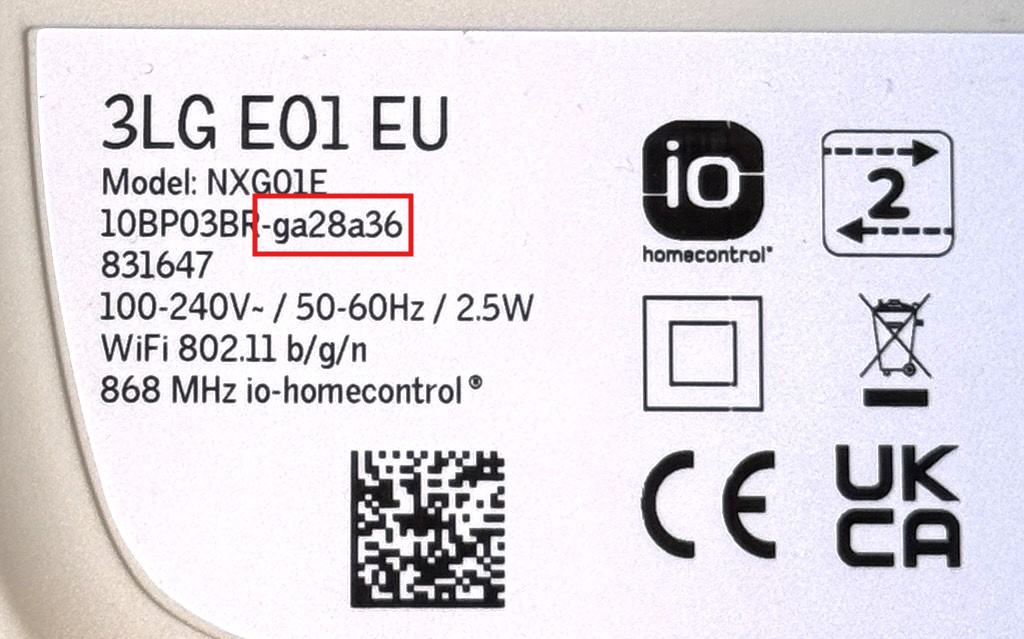
If the gateway is still shown as Disconnected from Internet after completing both steps above, please contact VELUX ACTIVE Support and provide details about your gateway (MAC address) and the troubleshooting steps you have already tried. This will help us assist you more quickly. MAC address can be found on the back of the gateway and starts with -g.
How can we help you?
Need further assistance?
If you are not sure how to proceed or you can’t find what you are looking for, get the help you need.